
Mastering WorldEdit: A Comprehensive Guide for Minecraft Builders
WorldEdit is an indispensable tool for Minecraft builders, providing powerful commands and features that allow for quick and efficient construction, terraforming, and editing of large-scale builds. Whether you’re working on a solo project or managing a server, WorldEdit can drastically reduce the time and effort needed to bring your vision to life. In this article, we’ll explore the various aspects of WorldEdit, including essential commands, mod options, and advanced techniques like using the paint brush and pasting without air.
What is WorldEdit?
WorldEdit is a Minecraft mod and plugin that offers a wide range of tools to edit and manipulate the game world. Originally developed as a plugin for Bukkit and other server platforms, WorldEdit has since become available as a mod for Fabric and other modding platforms, making it accessible to both single-player and multiplayer environments.
WorldEdit Minecraft Plugin vs. Mod
- WorldEdit Minecraft Plugin: Commonly used on multiplayer servers, the plugin version of WorldEdit integrates seamlessly with server software like Bukkit, Spigot, and Paper. It provides server administrators and players with powerful tools to manage and modify the world efficiently.
- WorldEdit Minecraft Mod: The mod version of WorldEdit is designed for single-player use or servers running on modded platforms like Fabric. This version offers the same functionality as the plugin but is tailored for environments where mods are used instead of plugins.
WorldEdit Mod for Fabric
For players using the Fabric modding platform, the WorldEdit Mod for Fabric is the go-to version. It allows you to use all of WorldEdit’s features in a Fabric environment, making it compatible with a wide range of other mods that might be running on your server or single-player world.
Essential WorldEdit Minecraft Commands
WorldEdit is driven primarily by its powerful command system, which allows users to perform a wide range of tasks. Here are some of the most essential WorldEdit Minecraft commands:
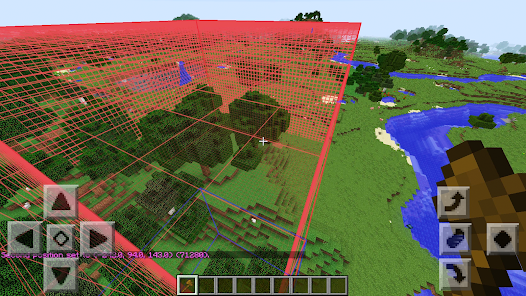
- //wand: Gives you the WorldEdit wand, a wooden axe by default, which is used to select regions.
- //set <block>: Changes all blocks within the selected region to the specified block.
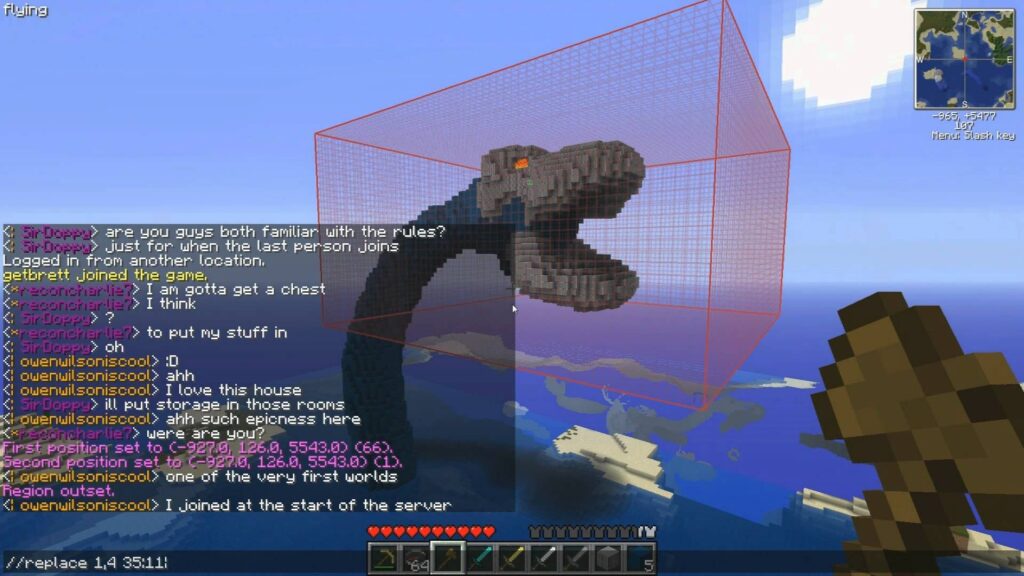
- //replace <old-block> <new-block>: Replaces all instances of the old block in the selected area with the new block.
- //copy: Copies the selected region to your clipboard.
- //paste: Pastes the copied region at your current location.
- //undo: Reverts the last WorldEdit action.
- //redo: Reapplies the last undone action.
Advanced Commands
- //paste -a: Pastes the copied region without including air blocks, making it ideal for pasting structures into existing landscapes without overwriting everything around them.
- //brush <shape> <material> <size>: Activates the WorldEdit paint brush, which allows you to “paint” blocks into the world by clicking with a brush.
Using WorldEdit Paint Brush
The WorldEdit paint brush is a powerful tool for applying blocks in specific patterns and shapes, making it ideal for terraforming and detailed builds.
How to Use the Paint Brush
- Activate the Brush: Use the command
//brush <shape> <material> <size>to set the brush type, the material it applies, and the size of the brush. - Shape Options: Choose from various shapes such as sphere, cylinder, or cube.
- Material: Specify the block type you want to apply with the brush.
- Adjusting Size: Set the size of the brush to control how much area it covers with each click.
This tool is particularly useful for creating natural landscapes, such as hills, mountains, and caves, by allowing you to “paint” terrain features directly into your world.
WorldEdit Paste and Paste Without Air
One of the most common tasks in WorldEdit is copying and pasting structures. However, pasting a structure directly can sometimes overwrite the surrounding area, including valuable terrain or other builds. To avoid this, WorldEdit provides an option to paste without air.
Pasting with WorldEdit
- //paste: This command pastes the copied structure at your current location, including all blocks, air included.
- //paste -a: This command pastes the structure without air blocks, preserving the existing terrain and structures around it. This is ideal for embedding buildings into landscapes or merging new structures with existing ones.
Installing WorldEdit
WorldEdit Download and Installation
To get started with WorldEdit, you first need to download the appropriate version for your setup:
- WorldEdit Plugin: Download from Bukkit or SpigotMC and place the
.jarfile in your server’spluginsfolder. Restart the server to activate the plugin. - WorldEdit Mod for Fabric: Download from a site like CurseForge, and place the
.jarfile into your Minecraftmodsfolder. Ensure you have Fabric installed and launch Minecraft with the Fabric profile.
Conclusion
WorldEdit is an essential tool for any serious Minecraft builder, offering a vast array of commands and features that make large-scale construction and world editing a breeze. Whether you’re using the plugin on a multiplayer server or the mod in a single-player world, WorldEdit will save you countless hours of work and unlock new creative possibilities. From basic region commands to advanced features like the paint brush and paste without air, mastering WorldEdit will take your Minecraft projects to the next level. Happy building!
